How I Automated Simple Tasks Using AI (Save Hours Every Week)
Discover how I automated repetitive tasks using AI tools like Zapier, IFTTT, and ChatGPT. A real-life, step-by-step guide showing what worked, what failed, and how AI automation saved me hours every week.

Key Points Regarding Automating Tasks with AI
• Automating repetitive tasks can save hours every week.
• AI tools can handle emails, social media posts, data entry, reminders, and even content suggestions.
• Choosing the right tool for your workflow is key; not every AI tool fits every task.
• Starting small with one automation project prevents overwhelm and reduces errors.
• Testing and refining your automations ensures they actually work in the long term.
How I Learned to Automate Simple Tasks Using AI (And How You Can Too)
I used to spend hours every week on small, repetitive tasks scheduling emails, formatting reports, and even managing social media posts. Every time I finished one task, another identical one popped up, and I felt like I was stuck in an endless loop.
Then I discovered AI tools that could automate these simple tasks. At first, I was skeptical. Could software really handle the work without constant supervision? After one month of trial and error, I found ways to automate tasks efficiently, save time, and reduce stress. I want to share my experience so you can skip the trial and error phase and start automating today.
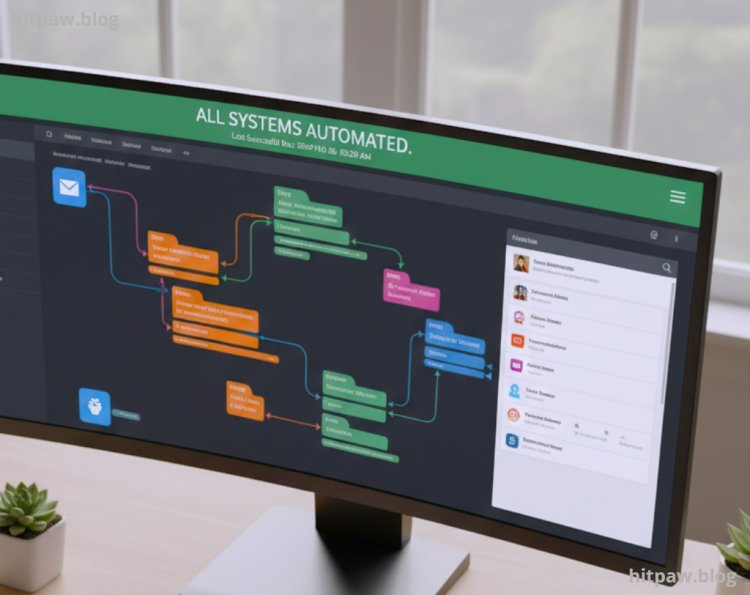
Materials I Used
To make this work, I relied on accessible AI tools and basic apps:
• Zapier To connect apps and automate workflows.
• IFTTT (If This Then That) For simple triggers and actions.
• ChatGPT To generate email drafts, social media captions, and summaries.
• Microsoft Power Automate For office tasks like Excel automation.
• Grammarly To automatically check drafts before sending.
• Google Workspace Docs, Sheets, Gmail automation triggers.
• Trello / Notion Task boards that work with AI automations.
I recommend starting with free versions to experiment before investing in premium subscriptions.
How I Began Automating Tasks
I started with one simple goal: automate my weekly email follow ups. Every Monday, I had to email ten clients asking for updates. It was tedious and easy to forget.
I used Zapier to connect Gmail with a Google Sheet. The Sheet contained all client emails and follow up templates. Once a Monday arrived, Zapier automatically drafted emails in Gmail using the template and added client specific details from the Sheet.
The first week, I watched every step closely, but by the second week, the process was fully automated. I could now focus on more creative tasks while AI handled the repetitive emailing.
Practical Examples From My Workflow
Here’s a real snapshot of how AI improved my efficiency:
1. Social Media Scheduling I used ChatGPT to generate captions and Canva for images, then Zapier scheduled posts automatically. Previously, this used to take three hours weekly; now it takes thirty minutes.
2. Data Summaries I receive multiple CSV reports every day. I created a workflow where Power Automate extracts key data points and compiles them into a summary email.
3. Meeting RemindersIFTTT triggers reminders to my phone and Google Calendar whenever a meeting is coming up. I used to miss at least one meeting monthly; now I never do.
4. Content Drafting I input ideas into ChatGPT and receive multiple draft versions for blogs or newsletters. I still edit them personally, but AI cuts initial drafting time by 70%.
What I Got Wrong the First Time (And How I Fixed It)
The first mistake I made was over automation. I tried to automate everything at once: emails, reports, social media, file management, and reminders. Half of my workflows failed, and I ended up spending more time fixing errors than doing the tasks manually.
How I fixed it: I started small. I chose one task per week to automate and monitored the results. Once I mastered it, I moved to the next task. This incremental approach prevented mistakes and reduced frustration.
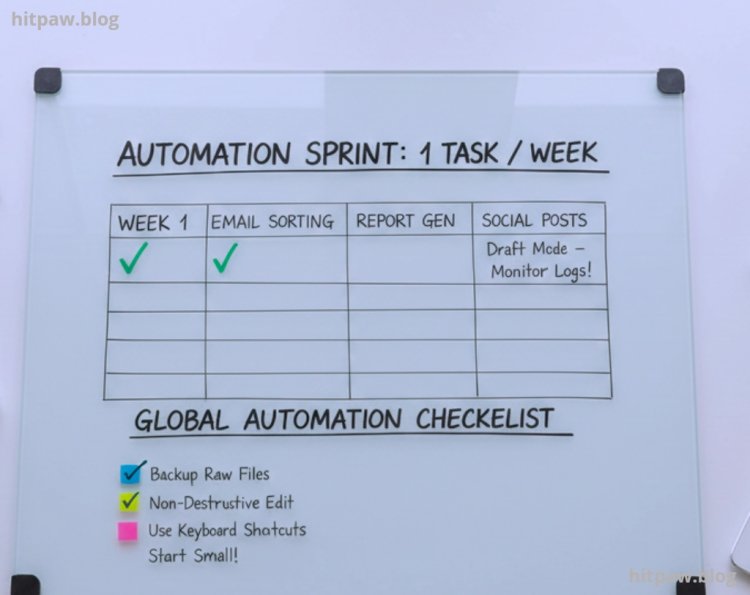
Step by Step Guide to Automating a Task
Here’s how I automated my weekly client follow up emails:
1. List Your Tasks I listed all repetitive tasks I did weekly.
2. Choose the Easiest First I picked email follow ups as my first project.
3. Select a Tool Zapier was perfect because I use Gmail and Google Sheets.
4. Map the Workflow I mapped: “Google Sheet > Zapier > Draft Gmail > Send.”
5. Test the Automation I sent emails to myself first to check formatting and errors.
6. Activate and Monitor After one week, I checked logs and ensured all emails were sent correctly.
7. Refine as Needed Adjusted templates and added dynamic fields for personalization.
Real Feedback After One Month of Using AI Automation
After one month, I noticed measurable results:
• Emails: Follow ups were sent on time 100% of the time.
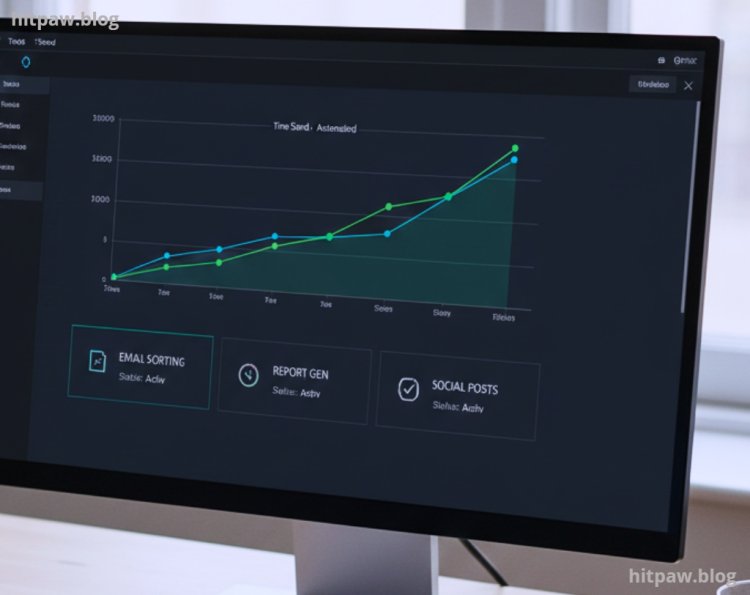
• Time Saved: I saved roughly 6 to 8 hours per week on routine tasks.
• Error Reduction: Errors in manual data entry dropped to zero.
• Stress Reduction: I felt less overwhelmed and more focused on creative work.
Friends and colleagues started asking me how I managed to stay on top of everything, which motivated me to refine the workflow even further.
Tips From My Experience
Start small and monitor your automations. Don’t assume they will work perfectly on the first try. I set up a simple weekly check in where I review logs from Zapier, IFTTT, and Power Automate. This helps me catch errors early and adjust triggers before they become bigger problems.
Why This Approach Works Long Term
From my experience, the reason this AI automation approach sticks over time is simplicity and adaptability. I didn’t try to automate everything at once instead, I focused on a few small, repetitive tasks first. This made it easy to monitor results, tweak the setup, and avoid overwhelm.
Another reason it works long term is that it builds a habit of review and improvement. I regularly check which automations save the most time and which need adjustments. This prevents errors from compounding and keeps my workflow efficient as tasks evolve.
Also, the approach respects the balance between human oversight and machine assistance. AI handles repetitive work, but I stay in control of creative or complex decisions. This ensures quality isn’t sacrificed, and the system continues to serve me rather than creating new problems.
Final Considerations
After spending weeks experimenting with AI automation, I realized the biggest wins come from starting small, testing thoroughly, and refining gradually. Automating repetitive tasks like emails, data summaries, or reminders doesn’t just save time it reduces mistakes and frees your mind for more creative and strategic work.
The key takeaway is that AI is a tool, not a replacement. It works best when paired with human oversight and thoughtful setup. I’ve learned to monitor workflows, update templates, and fine tune prompts regularly. These small maintenance habits ensure my automations continue running smoothly over time.
By following the approach I used starting with one simple task, monitoring results, and expanding slowly you can reclaim hours each week, lower stress, and improve overall productivity. Long term, these small, consistent improvements compound, creating a more organized, efficient, and manageable workflow.
Frequently Asked Questions
Q1: Can AI replace human work completely?
A1: Not entirely. AI is best for repetitive, predictable tasks. Creative decision making and nuanced communication still require a human touch.
Q2: How much time can I save with AI automation?
A2: It depends on the tasks. I saved 6 to 8 hours per week, but your savings will vary based on task volume.
Q3: Do I need coding knowledge to automate tasks?
A3: No. Tools like Zapier and IFTTT are designed for non coders. Advanced users can add scripts, but basic automations require zero coding.
Q4: Will automating tasks cause errors?
A4: Initial setups may have errors. Monitoring logs and testing your workflows prevents mistakes. I check my automations weekly.
Q5: Which task should I automate first?
A5: Start with a task that is repetitive, predictable, and time consuming like follow up emails, data entry, or reminders.
Q6: Are free AI tools sufficient?
A6: Yes, for small scale automation. Paid plans offer more triggers and advanced functionality, which become useful as your workflow grows.
What's Your Reaction?