Why I Learned to Update Software the Right Way
Learn how to update software safely and correctly with my step by step guide. Avoid common mistakes, protect your system, and ensure smooth updates every time. Practical tips, tools, and real life experience included.
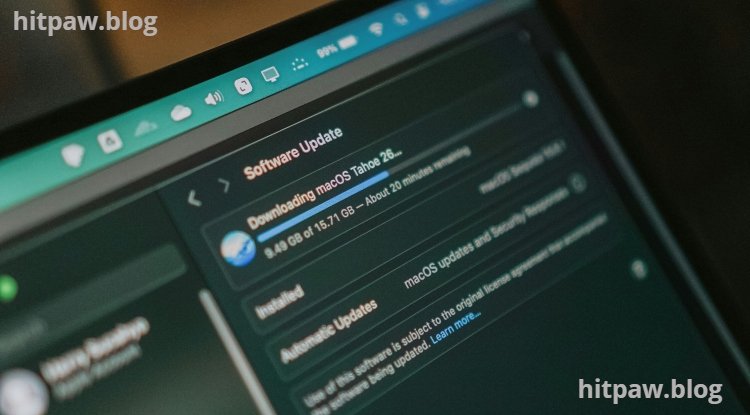
Key Points Regarding Software Updates
Learn why software updates are critical for security, performance, and new features.
Understand common risks of updating incorrectly, like crashes, data loss, or conflicts.
Step by step guidance for safely updating software on Windows, macOS, and mobile devices.
Practical tools, tips, and lessons from my personal experience.
FAQs covering troubleshooting and best practices.
Why I Learned to Update Software the Right Way
I remember the first time I updated my PC software without backing anything up. Everything seemed fine at first, but hours later, my system started behaving strangely applications crashed, settings were lost, and I had to restore everything from scratch. That’s when I realized that updating software safely isn’t just about clicking “Update Now.”
Over the years, I’ve learned how to perform software updates in a way that prevents errors, maintains security, and keeps my devices running smoothly. In this guide, I’ll walk you through how to update software safely and correctly, based on real life experience. I’ll share practical tools, my mistakes, and tips that you won’t find in generic tutorials.
Why Updating Software Correctly Matters
Software updates are essential for:
Security Many updates fix vulnerabilities that hackers can exploit.
Performance Updates often improve speed and resource efficiency.
Features New updates can include helpful features or interface improvements.
Compatibility Ensures your software works with new devices or operating systems.
However, if updates are done incorrectly:
Your device may crash or freeze.
You could lose unsaved data.
Settings may revert to default.
Conflicts with other software may occur.
By following a proper update process, you can avoid these risks entirely.
Tools I Use for Safe Software Updates
Backup Tools:
Acronis True Image Full system backup before updates.
Mac Time Machine For macOS backups.
Google Drive / OneDrive Cloud backup for essential files.
Update Management Tools:
Ninite Updates multiple Windows apps automatically.
Patch My PC Checks for outdated software and updates them safely.
Homebrew (macOS) Command line package manager for safe software upgrades.
Monitoring Tools:
Process Explorer Monitor apps during updates.
Resource Monitor Check CPU and RAM usage to avoid crashes.
Step by Step Guide: How I Update Software Safely
Step 1: Backup Everything
Before I update any software, I always create a backup. Even minor updates can go wrong. I use either cloud storage or a local backup. For example, I recently updated Adobe Premiere Pro, and having a backup saved me from hours of reconfiguring preferences when the update reset my workspace.
Pro Tip: Include your documents, media files, and application settings in the backup.
Step 2: Check Software Compatibility
I always check if the software update is compatible with my OS version. Updating to software that isn’t compatible can crash your system or cause errors. For example, a macOS Monterey update made some old apps unresponsive because they weren’t compatible.
Practical Example: Before updating Photoshop, I verified that my macOS version was supported and that my graphics drivers were updated. This prevented rendering crashes.
Step 3: Close Unnecessary Programs
Running programs during updates can interfere with installation. I close all apps, especially those that interact with the software being updated.
Lesson I Learned: Once, I left my antivirus scanning while updating Zoom. The installer froze and I had to restart my PC.
Step 4: Update Software Step by Step
Windows Example:
Open the software or visit the official website.
Check for updates from the “Help” or “Settings” menu.
Download the update installer.
Follow prompts carefully, reading each screen.
Restart the software or system if prompted.
macOS Example:
Open the App Store or software update notification.
Click “Update” for the required software.
If the system prompts for restart, save your work first.
Mobile Devices:
iOS: Settings > General > Software Update > Download & Install.
Android: Settings > System > Software Update > Download & Install.
Step 5: Verify the Update
Once the update completes, I always check if the software is working correctly:
Open the software and test essential functions.
Check if settings, plugins, or preferences remained intact.
Ensure no other apps are conflicting after the update.
Real Life Example: After updating Final Cut Pro, I noticed my custom keyboard shortcuts were reset. By testing immediately, I was able to restore them quickly.
Step 6: Troubleshoot Problems if Needed
Sometimes updates fail. I have a go to troubleshooting checklist:
Reboot the device and try updating again.
Check for pending OS updates that may block the software update.
Disable antivirus/firewall temporarily if it interferes.
Reinstall the software if nothing else works.
Lesson I Learned: I once ignored a failed update notification for Audacity. Days later, the software crashed repeatedly. Applying the fix immediately prevented long term issues.
Step 7: Maintain a Regular Update Schedule
I schedule software updates weekly or monthly, depending on the criticality of the software. Regular updates reduce the risk of a massive backlog that can cause errors.
What I Got Wrong the First Time
The first time I updated my graphics drivers, I didn’t check compatibility with my editing software. After the update, Adobe Premiere kept crashing, and I lost a day fixing it. Now, I always check software and driver compatibility before updating anything.
Conclusion
Updating software safely is more about planning than the update itself. Always backup first, check compatibility, close other apps, and verify functionality. Mistakes happen, but with careful steps, they won’t cost you time or data.
Over time, this process becomes second nature and protects your system from errors, crashes, and lost data. I now treat software updates like routine maintenance for a car it keeps everything running smoothly and safely.
FAQs
Q1: Can I skip minor software updates?
Yes, but skipping security patches can leave your system vulnerable. I recommend installing at least security updates promptly.
Q2: Should I update all apps at once?
No. I prefer updating one critical app at a time, then testing it, to avoid conflicts or crashes.
Q3: How do I know if an update is safe?
Use official sources or verified tools like Ninite, Patch My PC, or App Store updates. Avoid third party download sites.
Q4: What if the update breaks my software?
Restore your backup immediately. If you don’t have one, uninstall and reinstall the previous version if available.
Q5: Are automatic updates safe?
Yes, for most software. I enable auto updates for critical apps like antivirus, but I manually update software that may conflict with my work environment.
Q6: Can I update software without an internet connection?
Yes, if you download offline installers from the official website. Always verify the version before installing.
What's Your Reaction?