How I Update Software Safely Without Losing Data
Learn how I update software without losing files, settings, or projects. A real-life, stress-free update system with backups, tools, mistakes, and recovery tips.

Key Points Regarding Updating Software Safely
• Updating software doesn’t have to be scary data loss can be prevented.
• Backups are your safety net; cloud storage and local backups both matter.
• Incremental updates reduce the risk of software breaking.
• I’ll share real life mistakes I made the first time and how I fixed them.
• Tools & materials I use to make the process smooth every time.
How I Update Software Without Losing Data (And Stay Stress Free Every Time)
I’ve had my fair share of software nightmares. There was a time when a single update wiped months of work from a project folder, leaving me frustrated and scrambling to recover files. After that experience, I decided to create a system that ensures I can update any software whether it’s an operating system, productivity tool, or design program without risking a single piece of data.
This blog is based on my personal journey. I’ll walk you through the exact steps I use, the tools I rely on, and the mistakes I made the first time. If you follow this guide, updating software will feel like a simple, stress free process.
Tools I Use
• External Hard Drive (1TB or more): I keep a dedicated backup drive just for software and important files.
• Cloud Backup Services: Google Drive, OneDrive, and Dropbox are my go to for automated backups.
• Backup Software: I use Macrium Reflect for Windows and Time Machine for Mac.
• Version Control Tools: For work files, I use GitHub or GitLab to keep incremental updates safe.
• Software Update Manager: Tools like Ninite or Patch My PC help me update multiple apps safely at once.
• File Recovery Software (Optional): Recuva or Disk Drill for extra safety in case something goes wrong.
Understanding the Risk
The problem I faced was simple but painful: I updated software without thinking. One day, I updated my photo editing program, and all my custom brushes and templates disappeared. It wasn’t the software’s fault I simply hadn’t backed anything up. That’s when I realized updating without a system is a recipe for disaster.
I wanted a method that lets me enjoy new features without the panic of data loss. Here’s what I discovered: the key is preparation, systematic backups, and knowing which settings to preserve.
Practical Examples From My Experience
1. Office Suite Update:
I once updated Microsoft Office on my laptop. Before following a proper backup routine, I lost custom templates and macros I’d built over months. Now, I always export templates to a cloud folder before updating.
2. Design Software Update:
Updating Photoshop without saving my brushes separately caused chaos. I now export brushes, patterns, and actions into a dedicated backup folder every time I see a pending update notification.
3. Operating System Update:
The first time I updated Windows 10 without backing up, my settings were reset, and some programs required reinstallation. Using a full system image backup now prevents that from happening.
What I Got Wrong the First Time (And How I Fixed It)
The first time I updated my software, I skipped backing up my configuration files. I thought the update would keep all my settings intact but it didn’t. I ended up losing custom layouts and saved preferences, which meant hours of reconfiguring everything.
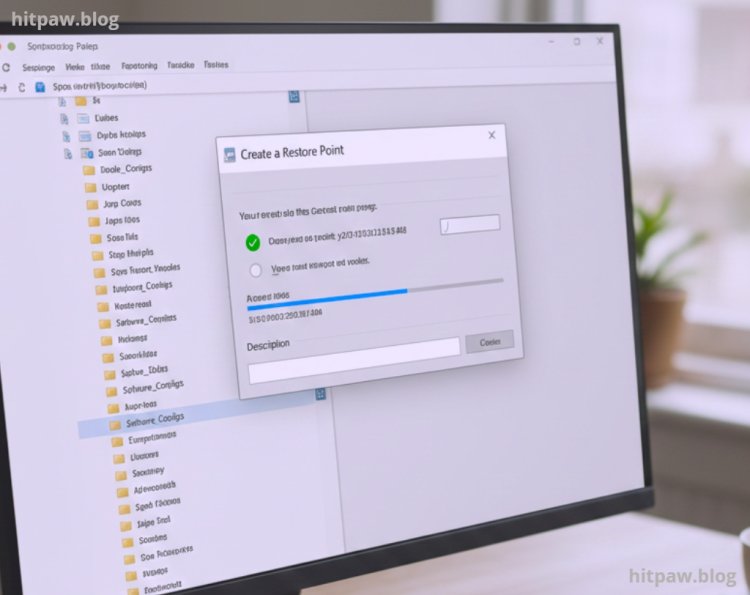
To fix it, I started exporting all settings and important files to a cloud folder before every update. I also learned to create a system restore point on my computer. Now, even if something goes wrong, I can restore everything quickly without losing data or spending hours troubleshooting.
Step by Step Guide to Updating Software Without Losing Data
Step 1: Backup Everything
• Cloud Backup: Upload essential files to Google Drive, OneDrive, or Dropbox.
• Local Backup: Use an external drive and backup software (Time Machine for Mac, Macrium Reflect for Windows).
• Export App Settings: Export templates, brushes, or preferences for specific programs.
Step 2: Check for Update Notes
• Read what’s changing in the new version.
• Check forums or official documentation for known issues.
• If it’s a major OS update, verify compatibility with other software you use.
Step 3: Close All Active Programs
• Close all applications.
• Save unsaved work.
• Disable any background processes that may interfere with installation.
Step 4: Update Software
• Use official update tools or verified installers.
• For multiple apps, consider tools like Ninite (Windows) to update all at once.
• Avoid beta updates unless you want to test new features with caution.
Step 5: Verify Data Post Update
• Check that all your files are intact.
• Open updated programs and confirm custom settings and templates are intact.
• Restore backups immediately if any data appears missing.
Step 6: Maintain Regular Backups
• I set a weekly reminder to backup important files.
• Incremental backups help keep changes safe without duplicating everything.
Tips From My Experience
One thing I learned the hard way is that even minor updates can overwrite customized settings. I always make a quick export of preferences and configuration files before updating. Using version controlled folders or cloud backup ensures that if something goes wrong, I can restore my setup in minutes.
Also, I schedule updates during low usage hours this prevents interruptions and gives me time to troubleshoot if needed. A little preparation upfront saves hours of frustration later.
Real Feedback After One Month of Using This Method
After a month of consistently backing up my files and creating restore points before every software update, I noticed a huge difference. Updates no longer feel risky, and I haven’t lost a single setting or document. Even when one update caused a minor glitch, I restored my system within minutes no stress, no data loss.
I also realized that keeping a dedicated folder for important configs made switching between versions seamless. Overall, this method has saved me hours of frustration and keeps my workflow smooth.
Final Considerations
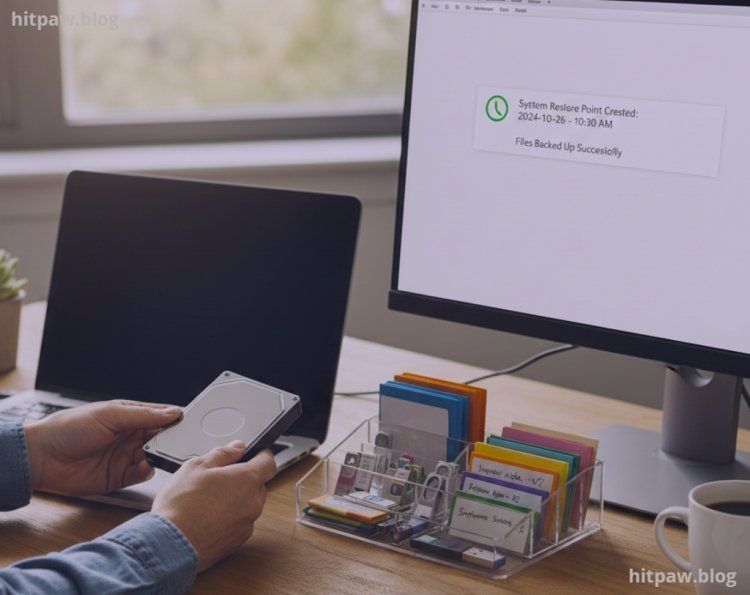
From my experience, the key to updating software without losing data is preparation. Backing up your files, exporting settings, and using trusted update tools are small steps that prevent big headaches later. I’ve learned that rushing updates often leads to mistakes, while careful planning ensures smooth upgrades.
Always double check compatibility, create restore points when possible, and maintain both local and cloud backups. Even if an update fails, these precautions let you recover quickly without losing anything important.
Finally, treat software updates like maintenance for your system they keep things running smoothly and safely. With the right approach, updates become less of a chore and more of a way to keep your software efficient and secure.
Frequently Asked Questions
1. Do I really need to backup before every software update?
Yes. Even minor updates can sometimes cause unexpected issues. A quick backup ensures you don’t lose critical files or settings.
2. Can I rely solely on cloud backups?
Cloud backups are great, but I also keep a local copy on an external hard drive. This protects against accidental deletions or syncing errors.
3. What’s the safest way to handle major software upgrades?
For major upgrades, I always export app specific settings, create a full system backup, and test updates on a secondary device if possible.
4. Can I update multiple programs at once safely?
Yes. Tools like Ninite (for Windows) or Homebrew (for Mac) help me update multiple apps safely, but I still back up before batch updates.
5. What if something goes wrong after the update?
I restore my backup or use a system restore point. Keeping both local and cloud backups makes recovery quick and stress free.
6. Are beta versions safe to install?
Not always. I only test beta updates on a secondary device or virtual machine to avoid data loss on my main system.
What's Your Reaction?