Why I Struggled With Merging Clips
I share my real workflow for merging multiple video clips into one file, including tools, mistakes, and step by step tips for professional high quality results.
Main Highlights Regarding Merging Multiple Video Clips
Why my early merged videos looked jagged or out of sync
The exact tools I used and why I chose them
Step by step workflow for merging clips professionally
Mistakes I made with formats, frame rates, and audio
Real client and viewer feedback after improving my process
A practical maintenance checklist I follow for every merge
Why I Struggled With Merging Clips
When I first tried merging multiple video clips into one file, I assumed it would be simple: drag, drop, export. I quickly learned the hard way that it wasn’t. Some clips didn’t match in resolution, audio drifted out of sync, transitions looked awkward, and sometimes the exported file had black frames between clips.
My first attempt at merging a 10minute tutorial for a client ended with a file that felt amateurish. I had to redo almost the entire project. That experience taught me that merging videos professionally is more than “stack and export” it’s a technical and creative process that demands attention to detail.
The Project That Made Me Take Merging Seriously
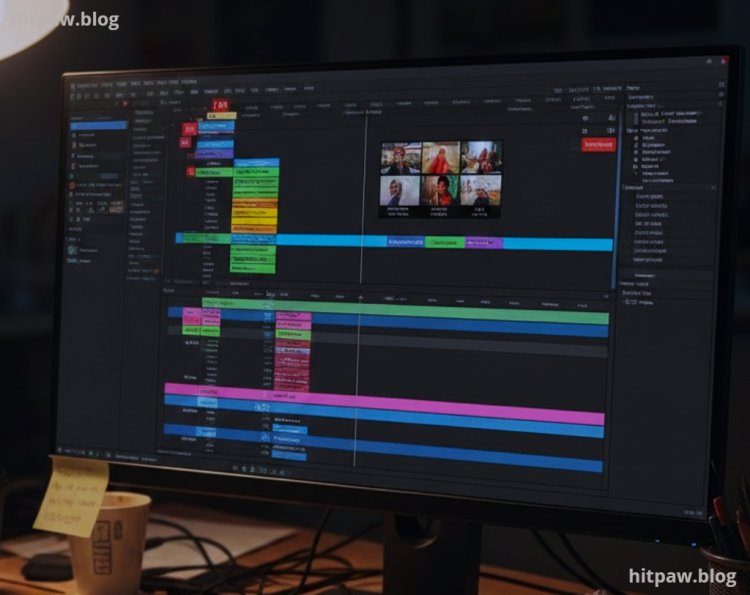
The turning point came during a multi camera tutorial project. I had six separate clips from different angles and devices, all meant to be merged into a single 20minute video.
Initially, I just stacked them on the timeline and exported. The result:
Two clips had slightly different frame rates, causing jitter
Audio drifted in some sections
Black frames appeared between cuts
At that moment, I realized merging isn’t automatic. Each clip needs preparation, alignment, and careful export.
Materials I Personally Used
Software Tools
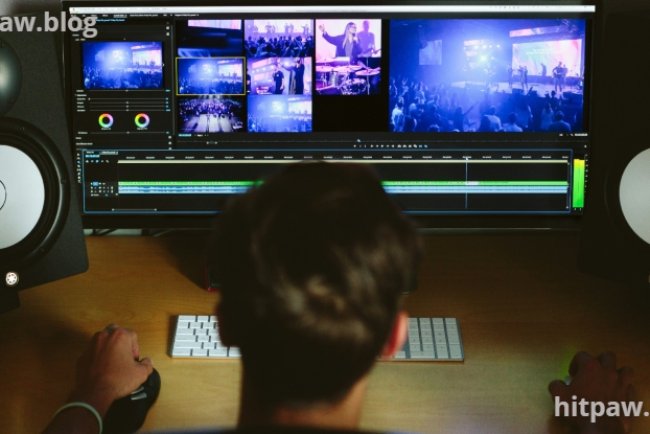
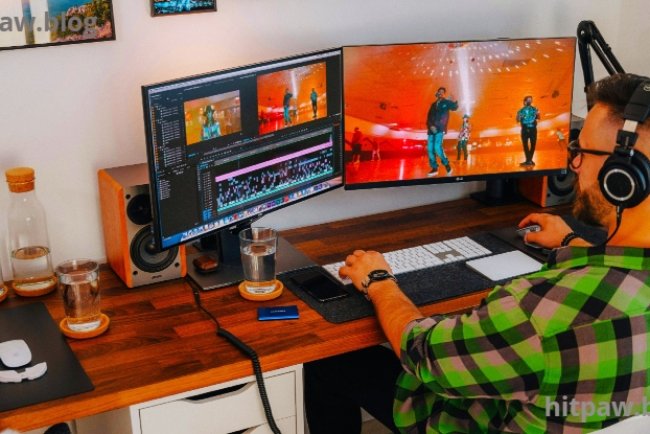
Adobe Premiere Pro main editor for timeline alignment
Final Cut Pro for Mac based projects
DaVinci Resolve for color correction before merging
HandBrake optional for compressing merged files without quality loss
File Types I Worked With
Video: MP4, MOV, AVI
Audio: WAV, MP3
Hardware
Laptop with Intel i7 and 16GB RAM
External SSD for faster access to large clips
Practical Reality Check About Merging
Merging clips is more than joining them it’s about matching resolution, frame rate, audio alignment, and visual consistency.
If your clips don’t match, exporting won’t magically fix the problem. That was my biggest early mistake.
How I Merge Video Clips Professionally
Step 1: Check All Clips Before Import
Verify resolution and frame rate for each clip
Note audio inconsistencies
Rename clips to avoid confusion
What I Got Wrong the First Time:
I merged clips blindly without checking their settings. Result: mismatched resolution, jittery playback.
Fix: I now prepare and organize clips before touching the timeline.
Step 2: Create a Proper Timeline
Set timeline resolution to match the dominant clip
Scale or adjust other clips to match
Avoid automatic resizing
Early mistakes happened because I ignored timeline settings, leading to stretched or compressed clips.
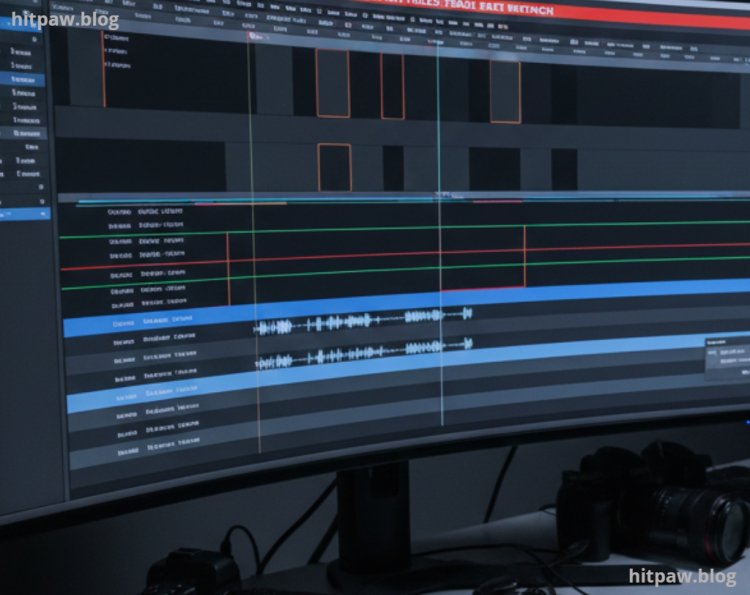
Step 3: Sync Audio Across Clips
Mistake: I assumed audio would align automatically.
Result: voiceover and music drifted, requiring re editing.
Fix:
Manually align audio tracks using waveform markers
Check multiple points in the timeline for sync
For multi camera projects, use a clap or marker to sync
Step 4: Apply Basic Color Matching
I used to ignore color differences between clips.
Now:
Adjust brightness, contrast, and white balance slightly
Ensure visual consistency
Avoid over editing, just enough to look seamless
Step 5: Add Transitions (Only When Needed)
Avoid flashy transitions unless it fits the video style
Use simple crossfades or cuts for tutorials and educational content
Step 6: Merge and Export Properly
Arrange clips in timeline sequentially
Export using high quality settings:
Format: MP4
Codec: H.264
Bitrate: High, VBR recommended
Test playback on multiple devices
Real Merging Issue I Faced
I once merged four clips for a tutorial:
Two clips were 1080p 30fps
Two clips were 720p 60fps
First attempt:
720p clips looked stretched
Audio drifted
Fix:
Scaled 720p clips to match 1080p
Converted frame rates to match dominant clip
Manually realigned audio
Final export was smooth, professional, and ready for client delivery.
Real Feedback After Fixing My Workflow
After improving my process:
Clients noticed smoother, more professional edits
Videos played flawlessly on mobile and desktop
Fewer revisions required
One client remarked:
“It feels like a single shot, not multiple clips stitched together.”
Tips From My Experience
Always keep original clips untouched. If you make a mistake during merging, you can start fresh without quality loss.
Wrapping It Up
Merging multiple clips professionally requires preparation, attention to detail, and careful exporting.
Once I:
Checked all clips
Matched resolution and frame rate
Synced audio properly
Exported at high quality settings
My merged videos looked smooth, professional, and consistent.
If you struggle with merging clips:
Prepare and check each file
Sync audio manually
Adjust colors for consistency
Test playback on multiple devices
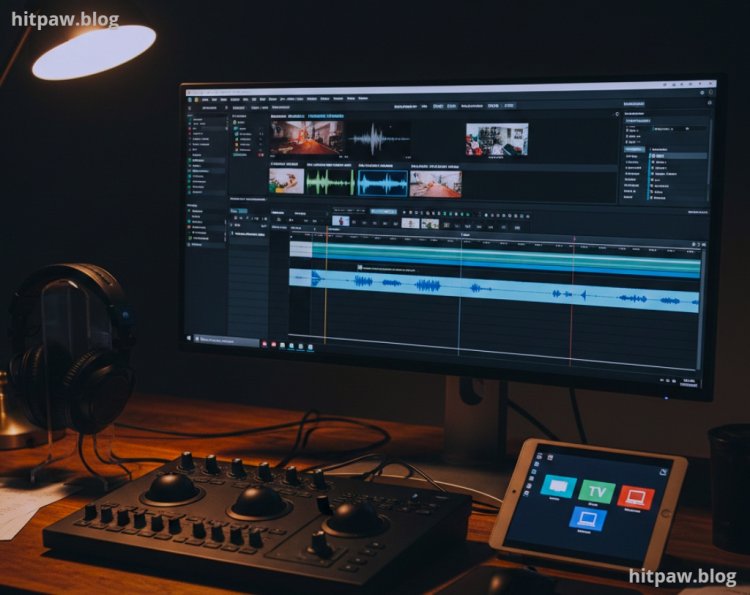
What I Got Wrong the First Time
|
Mistake |
How I Fixed It |
|
Ignored resolution differences |
Prepared all clips and scaled correctly |
|
Audio drifted |
Manually synced audio with waveform markers |
|
Overused transitions |
Limited to simple, smooth cuts |
Common Questions About Merging Video Clips
Q1: Can I merge clips with different resolutions?
Yes, but scale them carefully to match the timeline.
Q2: What format is best for merging?
MP4 with H.264 codec works reliably.
Q3: Do I need to match frame rates?
Yes, mismatched frame rates can cause jitter.
Q4: Should I merge audio separately?
If multiple audio tracks exist, yes.
Q5: How do I prevent black frames between clips?
Trim excess frames at clip ends and check transitions.
Q6: Is Premiere Pro necessary?
Not mandatory, but it provides precise control for professional merging.
What's Your Reaction?