Why I Learned to Back Up My Projects Before Editing
Learn how to safely back up your projects before editing with practical tools, step by step instructions, and expert tips. Protect your video, design, and software work from loss with verified backups, cloud storage, and automated methods.
Main Highlights Regarding How to Back Up Your Projects Before Editing
Why backing up your projects is crucial before any editing.
Practical tools and materials I personally use for backups.
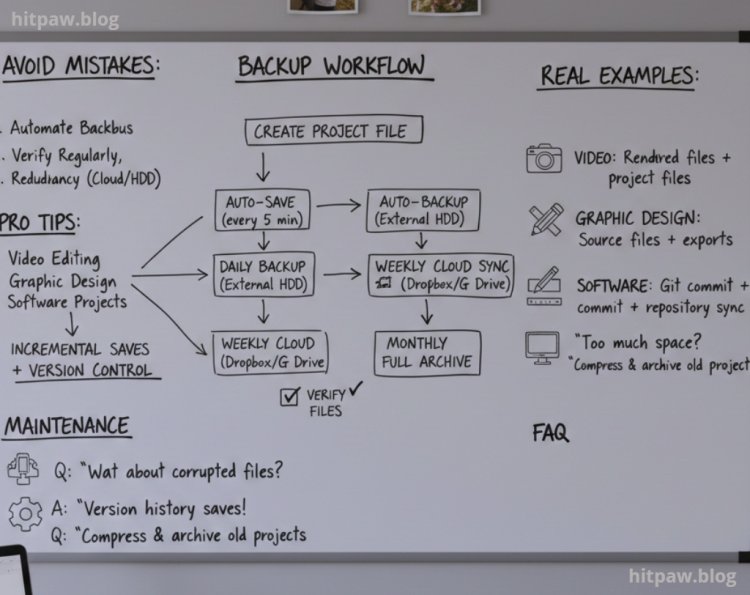
Step by step guide to creating secure backups.
How to avoid mistakes I made the first time.
Pro tips for automating and verifying backups.
Real life examples from video editing, graphic design, and software projects.
Maintenance and care strategies to prevent project loss.
FAQs answering common concerns about backups.
Why I Learned to Back Up My Projects Before Editing
I learned the hard way that editing without a backup is asking for disaster. Early in my career, I was working on a 15minute promotional video for a client. Everything seemed fine until my computer froze during an export. That’s when I realized that hours of effort were at risk, and I didn’t have a proper backup.
Since that day, I made it a personal rule: never start editing without backing up first. Whether it’s video, graphic design, or coding projects, backups are my safety net. Not only do they save time, but they also reduce stress and allow me to experiment freely without fear of losing progress.
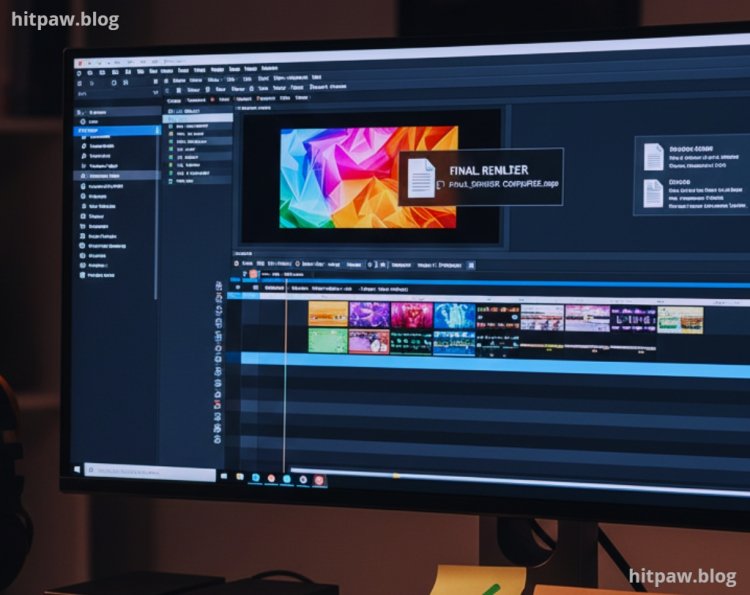
Materials I Use for Backups
Here’s my personal toolkit for reliable backups:
External SSD (500GB to 2TB) fast, reliable, and portable.
External HDD (2TB to 8TB) for long term archiving.
Cloud Storage Google Drive, Dropbox, OneDrive for offsite access.
Backup Software Free File Sync for mirroring and automated backups.
Version Control Software Git for coding projects.
Encryption Tool VeraCrypt to secure sensitive files.
Labeling Supplies I label drives and folders with project names and dates for clarity.
Pro Tip: Always use at least two different storage types. For me, that’s usually a combination of SSD + cloud storage or HDD + NAS.
Step by Step Guide to Backing Up Projects
Step 1: Organize Your Project Files
· Before backing up, I organize my files into clear folders:
Project Name Raw Files unedited source files.
Project Name Working current editing version.
Project Name Exports final rendered/exported files.
This ensures I don’t mix raw, working, or final files, which can cause confusion during restoration.
Step 2: Perform a Pre Edit Backup
Before opening my editing software, I create a full backup:
Copy the project folder to my external SSD.
Upload a copy to Google Drive.
Label the backup clearly with the date and “Pre Edit” tag.
Example: Promo Video 2026-01-12 Pre Edit
Step 3: Enable Auto Save Features
Most software today has built in auto save or versioning features. I always:
Enable auto save every 5 to 10 minutes.
Configure software to keep multiple versions.
Store auto save files on a different drive than the working copy.
· This way, even if my software crashes mid edit, I can restore to the last auto saved version.
Step 4: Create Incremental Backups During Editing
I don’t just backup once. I follow a checkpoint system:
Morning Backup before starting work.
Midday Backup after completing a significant editing milestone.
End of Day Backup final backup before shutting down.
· Checkpoint backups reduce the risk of losing hours of work.
Step 5: Backup Offsite or to Cloud
Physical drives can fail or get lost, so offsite or cloud backups are essential:
I upload critical files to Google Drive or Dropbox.
For very large projects, I use NAS (Network Attached Storage) with remote access.
For sensitive files, I encrypt them with VeraCrypt.
Lesson Learned: My first major project was lost because I relied solely on a single external HDD. Now, I always maintain at least two backup locations.
Step 6: Verify Backup Integrity
It’s not enough to just copy files. I always:
Open a few random files to ensure they work.
Use checksum tools (MD5/SHA-256) to verify data integrity.
Compare file sizes between original and backup to detect incomplete copies.
Pro Tip: Free File Sync has a verification feature that automates this process.
Step 7: Maintain Multiple Versions
I maintain three levels of backups:
Working copy what I actively edit.
Incremental backup after milestones on external SSD.
Archive copy final copy stored offsite/cloud after project completion.
Example: I once accidentally deleted a crucial video layer. Luckily, I retrieved it from an incremental backup and avoided recreating 3 hours of work.
Step 8: Automation for Large Projects
For complex projects or team collaborations:
I set up scheduled backups using Free File Sync to run automatically every night.
Use cloud syncing to update offsite backups automatically.
For software projects, I push code daily to a GitHub repository as a backup.
Automation saves time and prevents human error.
Step 9: What I Got Wrong the First Time
I once relied solely on cloud backup, and a temporary outage prevented me from accessing files for an entire day.
I also didn’t verify backups, and one corrupted file caused a minor panic.
Now, I always have redundant storage and verify backups before starting edits.
Real Life Examples
Video Editing:
I was editing a 30minute client video with multiple audio tracks. My daily and mid edit backups allowed me to restore corrupted video sequences in minutes.
Graphic Design:
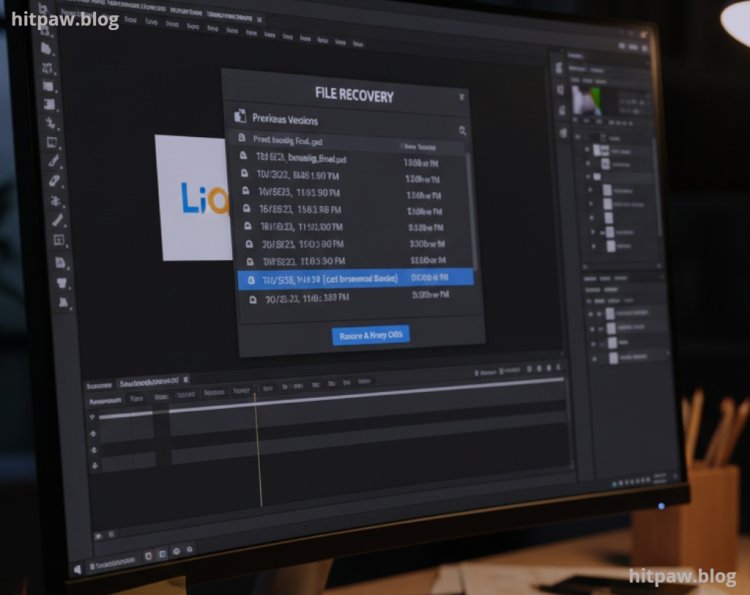
While designing a branding package, I accidentally overwrote a PSD file. Thanks to incremental backup, I recovered the previous version without losing edits.
Software Development:
I used Git and external backups for a Python project. When a major coding error occurred, I restored the last working version without affecting ongoing development.
In Summary
Always backup before editing: Avoid the stress of lost work.
Use multiple backup methods: Local, cloud, and offsite storage.
Automate backups: Saves time and reduces human error.
Verify regularly: Check file integrity and version history.
Label everything clearly: Easy to track and restore versions.
FAQs
1. How often should I back up my project files?
Daily for active projects, and after major milestones.
2. Is cloud storage alone safe?
No. Always pair cloud storage with local or offsite backups.
3. What if my backup drive fails?
Use multiple drives and check drive health regularly.
4. Can I automate backups?
Yes. Tools like Free File Sync or Time Machine automate backups efficiently.
5. How do I restore corrupted files?
Use incremental backups, archive copies, or versioned files.
6. Should I have separate backups for different project types?
Yes. Video, graphics, and software projects benefit from structured, dedicated backups.
What's Your Reaction?