How I Handle Them Troubleshooting
Learn practical troubleshooting techniques for software and hardware problems. Get step by step solutions, pro tips, and real life examples from my personal experience to fix slow computers, crashes, connectivity issues, and more.

Main Highlights Regarding Troubleshooting Guides
How to quickly identify and fix common software and hardware problems
Tools and materials I personally use for troubleshooting
Step by step processes to solve real life issues
Lessons learned from my own mistakes
Pro tips and maintenance strategies for preventing recurring problems
How I Handle Them Troubleshooting
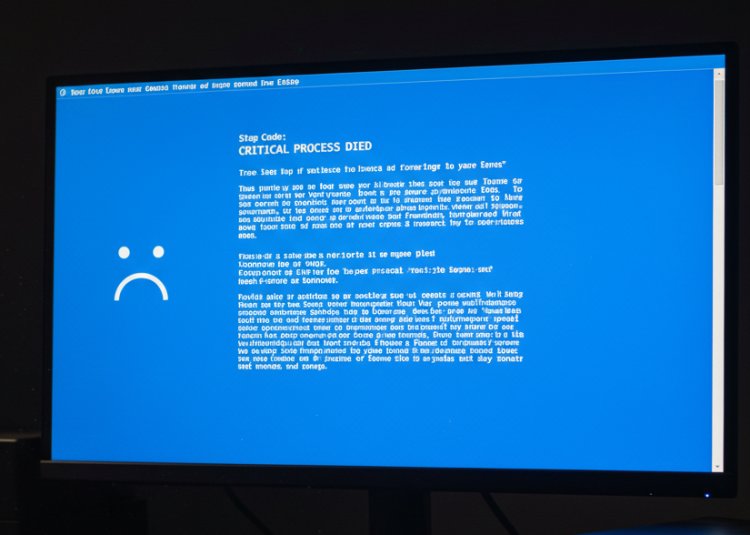
I remember the first time I faced a major computer crash. I had a deadline for a client project, and everything froze mid process. I panicked and almost lost hours of work. Since then, I realized that troubleshooting is not just about fixing problems it’s about anticipating them and being prepared. Over the years, I’ve learned that the right tools, step by step methods, and some patience can save hours of frustration.
In this guide, I’ll share my personal experience with troubleshooting everything from software errors to hardware malfunctions, along with the tools I trust, step by step strategies, and lessons I learned the hard way. Whether you’re a beginner or someone who deals with tech daily, this guide will give you practical ways to solve problems efficiently.

Materials I Always Use
Before diving into troubleshooting, I always ensure I have the following tools and materials ready:
Screwdrivers and repair kit: For hardware issues, I keep a set of small screwdrivers, anti static gloves, and a pry tool kit.
USB boot drives: I use a 32GB USB drive with Windows and Linux recovery tools.
Diagnostic software: Programs like CCleaner, Malwarebytes, and CrystalDiskInfo are essential for system checks.
External storage: A portable SSD to back up files before attempting risky fixes.
Internet access: Forums like Reddit, Stack Overflow, and official support sites often help solve unusual issues.
Notebook & pen: Yes, I still write down steps and errors it’s surprisingly effective.
Common Troubleshooting Scenarios
1. Slow Computer Performance
Problem: My computer started lagging heavily, especially when opening multiple programs.
Step by step resolution:
Check Task Manager I opened Task Manager (Ctrl+Shift+Esc) to see if any processes were consuming excessive CPU or RAM.
Uninstall unused programs Removing software I rarely used freed up significant memory.
Clean temporary files I used CCleaner to remove caches, logs, and temp files.
Check for malware Running Malwarebytes often found hidden malware slowing down the system.
Update drivers Outdated graphics or chipset drivers can drastically reduce performance.
Pro Tip: Schedule monthly maintenance to clear caches and update drivers it prevents recurring slowdowns.
What I Got Wrong the First Time: I initially thought adding more RAM alone would solve the problem. It helped, but the real bottleneck was malware I hadn’t detected. Lesson learned: always check software issues before hardware upgrades.
2. Software Crashes
Problem: Adobe Premiere kept crashing when rendering videos.
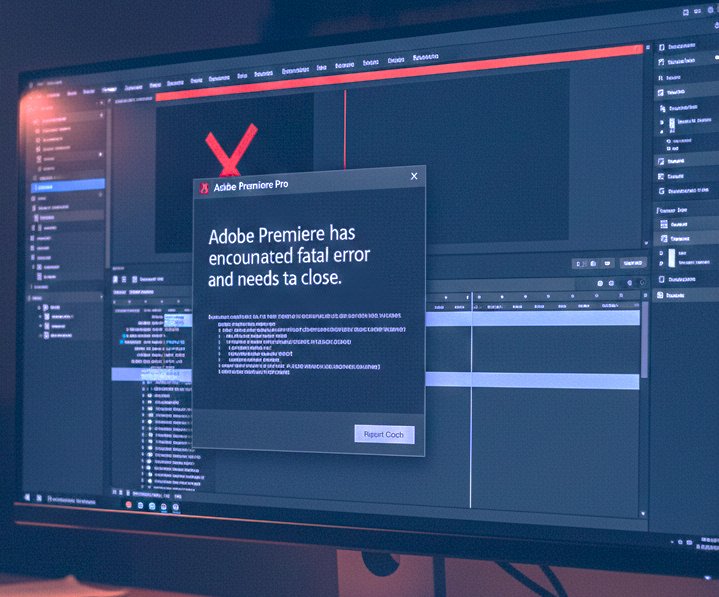
Step by step resolution:
Update software I ensured I was using the latest version of Premiere.
Check plugins Some third party plugins were incompatible, so I disabled them.
Clear cache Premiere’s media cache sometimes causes crashes; clearing it solved the issue.
Adjust settings Lowering render quality temporarily helped stabilize the program.
Reinstall as last resort Complete uninstall and reinstall fixed persistent crashes.
Practical Tip: Before reinstalling software, backup preferences and settings, so you don’t lose workflow customizations.
Lesson Learned: Don’t jump to reinstalling immediately. Minor settings and plugin conflicts are often the real culprit.
3. Internet Connectivity Issues
Problem: My Wi-Fi kept dropping randomly.
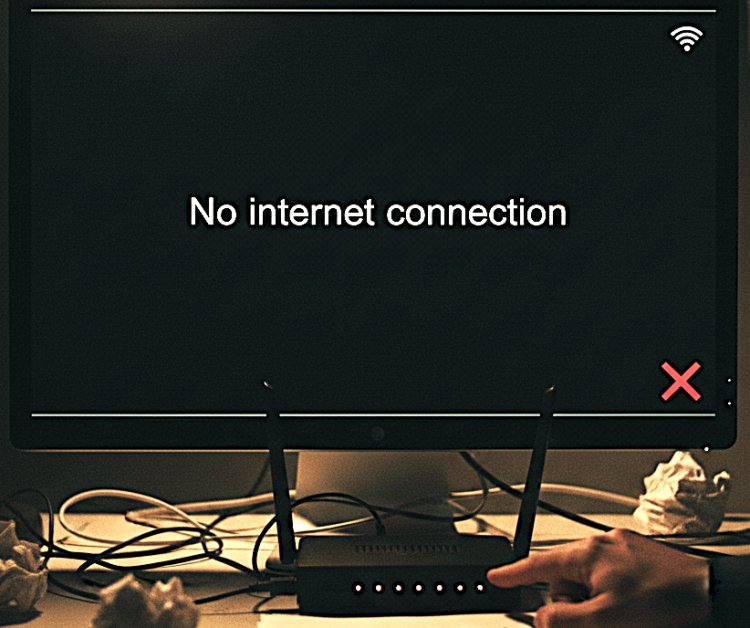
Step by step resolution:
Restart router & modem Simple but effective.
Check device limits My network was overloaded with devices; reducing connections helped.
Update firmware Router firmware updates improved stability.
DNS configuration Switching to Google DNS (8.8.8.8) reduced latency and disconnections.
Check hardware placement Moving the router centrally minimized dead zones.
Pro Tip: I label all my network devices and assign static IPs for critical devices to avoid conflicts.
What I Got Wrong the First Time: I blamed my ISP initially. Turns out, a misconfigured router setting was the problem. Lesson: always troubleshoot locally before blaming external providers.
4. Hardware Failures
Problem: My external hard drive wasn’t detected by the computer.
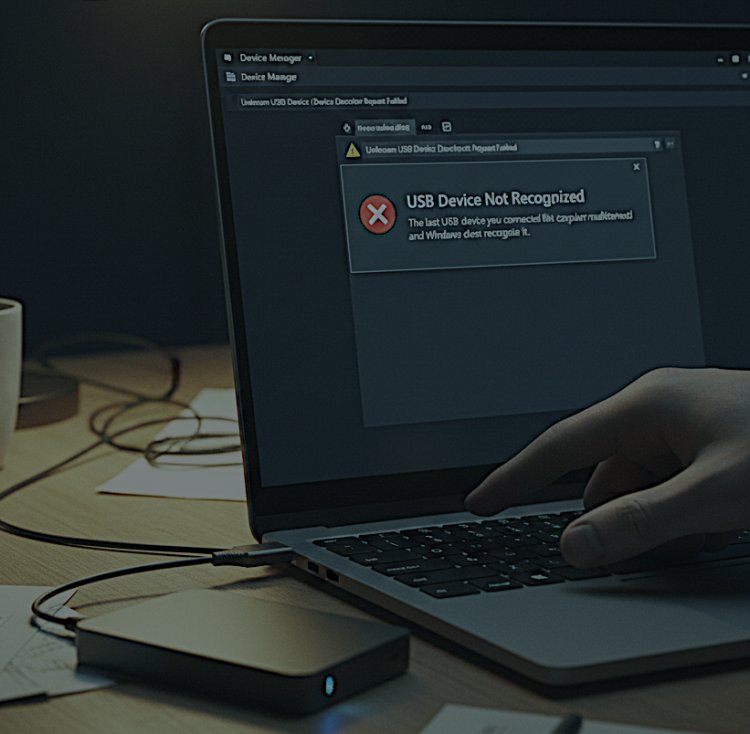
Step by step resolution:
Test on another computer Verified it wasn’t the PC.
Change cables & ports Sometimes a faulty USB cable causes detection issues.
Check Disk Management The drive was listed but unallocated.
Data recovery software I used EaseUS Data Recovery to retrieve files.
Format & replace After recovery, I reformatted the drive and it worked fine.
Pro Tip: Always keep backups on multiple devices. Hardware can fail anytime, and prevention is better than recovery.
Lesson Learned: Panic can lead to mistakes. I tried force fixing it immediately and almost lost data. Take a methodical approach.
Step by Step Troubleshooting Workflow I Follow
Real Life Feedback
Example 1: My video rendering was failing on Premiere. After checking forums, I discovered my GPU drivers were outdated. Updating them solved the issue instantly.
Example 2: One of my clients had a non booting laptop. I tried multiple solutions, but the BIOS settings were misconfigured. Resetting BIOS restored functionality.
Feedback: I’ve shared these methods with friends and clients, and everyone agrees that a structured troubleshooting workflow saves hours of frustration.
Final Considerations
Troubleshooting is more about mindset than tools. Here’s what I’ve learned from years of experience:
Be patient and methodical Hasty fixes often worsen problems.
Backup everything Before trying anything risky, secure your data.
Keep your tools ready Software and hardware kits save time.
Document recurring issues Patterns help solve future problems faster.
Learn continuously Tech evolves; yesterday’s fixes may not work today.
· Troubleshooting isn’t just a skill it’s a lifesaver for anyone working with computers, software, or tech devices.
FAQs
Q1: How do I know if a problem is hardware or software?
A: Start with software solutions first (updates, virus scans). If issues persist, test hardware components like RAM, drives, and cables.
Q2: Can I troubleshoot without professional tools?
A: Yes, but having USB drives, diagnostic software, and basic hardware tools speeds up the process.
Q3: How often should I maintain my system to prevent issues?
A: Monthly checks for updates, disk cleanup, and malware scans are sufficient for most users.
Q4: Is it safe to follow online forums for solutions?
A: Mostly yes, but verify with official documentation and avoid risky commands/scripts.
Q5: What’s the first step in any troubleshooting?
A: Clearly identify the problem and note the error messages or symptoms before making changes.
Q6: How do I prevent recurring problems?
A: Regular updates, backups, documentation of fixes, and proper system maintenance prevent most issues.
What's Your Reaction?