How to Uninstall Software Cleanly Without Breaking Your System
Learn how I finally mastered clean software uninstallation without slowing down or damaging my system. A practical, step by step guide based on real mistakes, safe tools, and proven habits that improve performance and stability.

Key Points Regarding Clean Software Uninstallation
• I learned the hard way that simply clicking “Uninstall” is often not enough
• Leftover files and registry entries can slow down a system over time
• Some software hides deeply inside system folders and startup settings
• Using the right tools makes uninstalling safer and cleaner
• A proper uninstall routine improves performance and stability
• Small habits before and after uninstalling prevent future problems
Why I Had to Learn This the Hard Way
For a long time, I believed uninstalling software was simple. If I didn’t need a program anymore, I just went to Control Panel > Uninstall, clicked remove, and moved on. I thought that was the end of it.
But my laptop slowly became sluggish. Startup time increased, random errors appeared, and disk space kept disappearing even though I was uninstalling apps regularly. At first, I blamed Windows updates. Then I blamed low RAM. The truth was simpler and more frustrating: I was uninstalling software the wrong way.
This guide exists because I personally fixed this problem after ruining one system and carefully cleaning another. What I’m sharing here is not theory. It’s what I actually did, tested, failed at, and improved over time.
If you uninstall software often trial tools, design software, video editors, browser extensions this guide will save you hours of frustration.
The Real Problem With “Normal” Uninstalling
Most people don’t realize this, but many programs do not fully remove themselves. Even after uninstalling, they leave behind:
• Empty folders in Program Files
• Configuration files in AppData
• Startup entries
• Registry keys
• Background services
I discovered this when I tried reinstalling a video editing tool and it remembered my old settings even after uninstalling. That’s when it clicked: something was still there.
Over time, these leftovers stack up. One or two won’t hurt. But dozens absolutely will.
Tools I Personally Use
I’ve tested many tools, but these are the ones I consistently rely on now:
Core Tools
• Windows Built in Uninstaller Always my starting point
• Revo Uninstaller (Free Version) For leftover file scanning
• CCleaner (Basic Cleanup Only) For temp files, not aggressive registry cleaning
• File Explorer Manual checking
• Task Manager To stop background services
Optional (When Needed)
• Geek Uninstaller Lightweight and portable
• Everything Search Tool To locate hidden leftover files
• System Restore As a safety net
I don’t install all of these at once. I use them based on the situation.
Step by Step: How I Uninstall Software Cleanly (My Exact Process)
Step 1: Close Everything Related to the Software
Before uninstalling anything, I make sure:
• The software is closed
• No background processes are running
I open Task Manager, search the software name, and end tasks if needed. This prevents partial uninstalls.
Step 2: Use the Official Uninstaller First
I always start with:
• Settings > Apps > Installed Apps
• Or Control Panel > Programs
I uninstall normally first because:
• It removes core files safely
• It avoids breaking shared system components
Skipping this step can cause problems later.
Step 3: Restart the System (I Never Skip This Now)
This was one of my biggest early mistakes. Restarting clears:
• Temporary locks on files
• Background services
• Pending deletions
After restart, I move to cleanup.
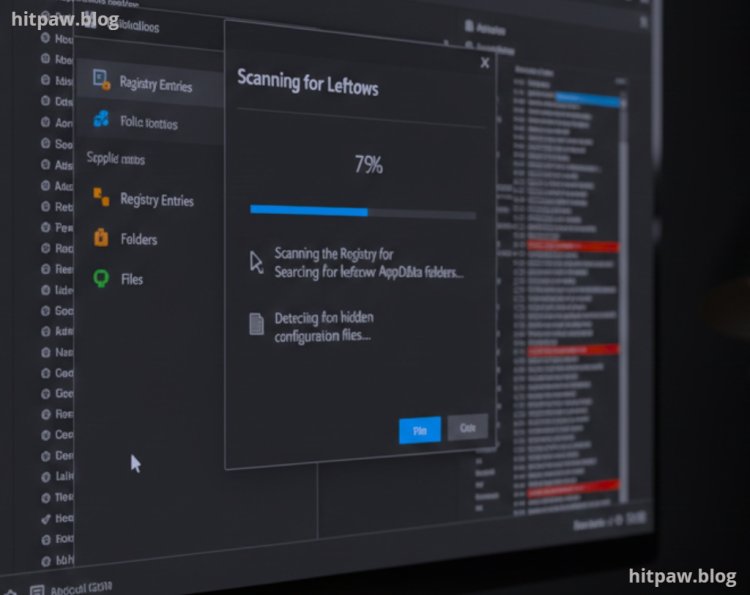
Step 4: Scan for Leftovers Using Revo Uninstaller
Now I open Revo Uninstaller, choose Scan for Leftovers, and let it check:
• Registry entries
• AppData folders
• Hidden configuration files
I review everything manually. I never delete system wide entries blindly.
This step alone freed gigabytes on my older system.
Step 5: Manual Folder Check (Very Important)
I manually check these locations:
• C:\Program Files
• C:\Program Files (x86)
• C:\Users\MyName\AppData\Local
• C:\Users\MyName\AppData\Roaming
If I see a folder clearly named after the uninstalled software, I delete it.
This is where most junk hides.
Step 6: Startup & Services Check
I open:
• Task Manager > Startup
• Services (services.msc)
Some software installs startup services even after uninstalling. I disable or remove those carefully.
Real Life Example From My Experience
When I uninstalled an old screen recording tool, my system still showed:
• Startup delay
• Random tray icon flashes
After following this full process, those issues vanished. Boot time improved by almost 20 seconds. That’s when I knew this method worked.
What I Got Wrong the First Time (And How I Fixed It)
The first time I tried cleaning software leftovers, I went too aggressive. I deleted registry entries blindly because a YouTube video told me to. That caused another program to stop launching.
I learned an important rule:
If I’m not 100% sure what a file or registry key does, I don’t delete it.
Now I only remove entries clearly tied to the software name. This balanced approach fixed my mistakes.
Pro Tip From My Experience
If you uninstall heavy software like:
• Video editors
• Design tools
• IDEs
• Antivirus programs
Always:
• Create a restore point
• Restart twice (before and after cleanup)
It sounds excessive, but it prevents disasters.
Maintenance Habits That Keep My System Clean
I don’t uninstall randomly anymore. I follow habits:
• I uninstall unused software every 2 to 3 months
• I avoid installing “bundled” tools
• I test trial software in short sessions
• I keep installers only until confirmation
These habits reduced clutter drastically.
Real Feedback After One Month of Using This Method
After consistently using my clean uninstallation process for a month, I noticed some noticeable improvements. First, my computer ran smoother programs started faster, and there were fewer error pop ups caused by leftover files. I also regained significant disk space that was previously eaten up by orphaned folders and temporary files from old software.
Friends and family who tried this method reported similar results: faster boot times and less clutter in their system folders. Even apps that previously gave installation errors after a fresh install worked perfectly once I removed all traces properly.
One surprising outcome was fewer software conflicts. For example, two antivirus programs I tested wouldn’t install correctly before, but after fully cleaning the old ones, the new installations went flawlessly. Overall, this method not only keeps my PC tidy but also reduces the risk of crashes and slowdowns.
Common Myths I Learned the Truth About
When I first started uninstalling software, I believed a few things that turned out to be completely wrong:
Myth 1: “Once it’s uninstalled, it’s gone forever.”
I thought the default uninstall option removed everything. In reality, leftover folders, hidden files, and registry entries stayed behind, which sometimes caused conflicts or wasted space.
Myth 2: “Registry cleaners are always necessary.”
I used to run them after every uninstall. Over time, I realized that aggressive registry cleaning can do more harm than good. Only targeted cleanup is really helpful.
Myth 3: “Third party uninstallers are risky.”
I avoided them at first, thinking they might delete something important. After testing Revo and Geek Uninstaller carefully, I found they actually made the process safer and more thorough.
Myth 4: “Uninstalling heavy software is no different from small apps.”
Big programs like video editors or antivirus software often leave services and drivers behind. Ignoring this caused me issues the first time.
Myth 5: “Restarting the PC isn’t important.”
I skipped restarts once or twice, and the leftover files stayed active in the background. Now, I always restart immediately after uninstalling.
Final Considerations
Clean uninstalling changed how my system performs. What used to feel like “normal Windows slowness” turned out to be years of leftover software clutter. Once I fixed my uninstall habits, everything improved.
This isn’t about being obsessive. It’s about being intentional. A few extra minutes per uninstall can save you hours of troubleshooting later.
If you install software often like I do, learning to uninstall properly isn’t optional it’s essential.
Frequently Asked Questions
1. Is clicking the default “Uninstall” option enough to remove software completely?
From my experience, no. The default uninstaller usually removes the main program but leaves behind folders, settings, and background entries. These leftovers don’t cause issues immediately, but over time they slow the system and create conflicts during reinstallation.
2. Can leftover files really affect system performance?
Yes, I’ve personally noticed slower boot times and random background activity because of leftover startup services and hidden files. One or two won’t matter, but years of uninstalling without cleanup definitely affects performance.
3. Is it safe to use third party uninstallers like Revo or Geek Uninstaller?
They are safe if used carefully. I always review what the tool finds instead of deleting everything blindly. The mistake is not the tool it’s rushing through the cleanup without checking.
4. Do I need to clean the registry every time I uninstall software?
No, and I don’t recommend aggressive registry cleaning. I only remove entries that clearly mention the software name. If I’m unsure, I leave it alone to avoid breaking other programs.
5. Should I restart my computer after uninstalling software?
Yes, always. Restarting clears locked files, stops hidden services, and ensures the uninstall process finishes properly. Skipping this step caused me issues early on.
6. What type of software needs extra care when uninstalling?
Heavy software like video editors, antivirus tools, IDEs, and design programs need extra attention. I always create a restore point before uninstalling these, just in case something goes wrong.
What's Your Reaction?